Home Language guides Korean keyboard

Korean Keyboard Guide 🇰🇷

Korean keyboard layout, accents and symbols

See the Korean layout for Mac or Windows, type Korean characters online, copy accents in one click, or convert your physical keyboard to Korean.

✓ Free online keyboard ✓ Mac and Windows layouts ✓ One-click symbol copying

Visual reference

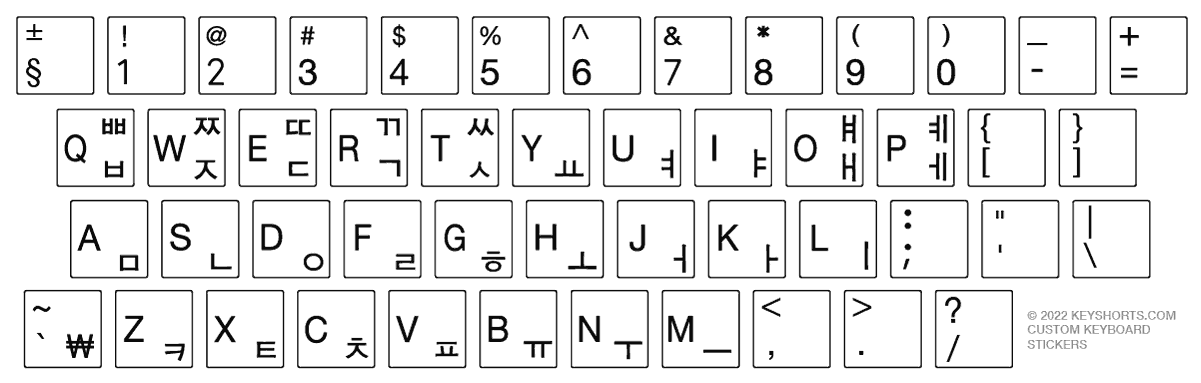
Korean keyboard layout

Choose your operating system. Mac and Windows may use a different key legends around the keyboard.

Korean keyboard layout on Mac

Korean layout for macOS.

Add on Mac

Immediate task completion

Type Korean online or copy special characters

Use the text box for a sentence, or copy a single symbol directly from the table.

Free Korean online keyboard

Korean accents and special symbols

Every symbol has a dedicated one-click copy button.

Symbol Copy
ㄱ
ㄲ
ㄴ
ㄷ
ㄸ
ㄹ
ㅁ
ㅂ
ㅃ
ㅅ
ㅆ
ㅇ
ㅈ
ㅉ
ㅊ
ㅋ
ㅌ
ㅍ
ㅎ
ㅏ
ㅑ
ㅓ
ㅕ
ㅗ
ㅛ
ㅜ
ㅠ
ㅡ
ㅣ
₩

System layout instructions

How to add a Korean keyboard layout

Select your device to see only the instructions you need.

Add Korean on Windows 11

Start → Settings → Time & language → Language & region
  1. 1
    Add Korean if needed

    Under Preferred languages, choose Add a language, search for Korean, and install it.

  2. 2
    Open Language options

    Select the menu next to Korean, then choose Language options.

  3. 3
    Add the layout

    Under Keyboards, select Add a keyboard and choose the Korean layout you need.

  4. 4
    Switch while typing

    Press Windows + Space to move between installed keyboard layouts.

Choose the right solution

How often do you type in Korean?

Choose between immediate copying, a software layout, or visible Korean legends on the keyboard.

Occasional use

Copy or type online

Best for a few accents, a short message or a form.

  • ✓ No installation
  • ✓ Works on any device
  • ✓ Free and immediate
Use the online keyboard
Regular typing

Add Korean in settings

Best when you type Korean often but do not need labels on the physical keys.

  • ✓ Built into your device
  • ✓ Fast layout switching
  • ✓ No physical change
See setup instructions
Best physical solution

Add visible Korean legends

Best for learning, converting a keyboard, or keeping two languages visible.

Compare Korean stickers

Common questions

Korean keyboard FAQ

How to convert my keyboard to Korean

The easiest way to convert your current keyboard language to Korean is by keyboard stickers. Keyshorts makes highest quality Korean keyboard stickers that will fit your keyboard. Keyshorts offers opaque/covering stickers that convert/hide your current layout with Korean. Learn more below.

How to add Korean letters to my keyboard on a side without losing backlight?

The easiest way to add Korean to your current keyboard language - without changing it - is by keyboard stickers. Keyshorts makes highest quality Korean transparent keyboard stickers that will fit your keyboard. Korean symbols are added in one of key's corners, without clashing with your existing letters. They are also fully backlight compatible. Learn more below.

What is the history of the Korean keyboard?

Modern Korean keyboards are designed around Hangul's component letters, or jamo. The most common arrangement is the two-set, or Dubeolsik, layout, which places consonants mainly under the left hand and vowels mainly under the right.

When typing, users enter the individual consonants and vowels and the computer automatically combines them into Hangul syllable blocks. The underlying physical keyboard remains QWERTY-based, so bilingual Korean keyboards normally display both Latin and Hangul legends on each key.

How to learn Korean?

Talk To Me In Korean offers extensive lessons in grammar, vocabulary and listening. How to Study Korean provides detailed written explanations, while the King Sejong Institute offers structured Korean learning material.

Need Korean visible on your keys?

Compare opaque conversion stickers with transparent, backlight-compatible Korean labels.

Shop Korean stickers
Korean stickers
Copied!